Duplicates explained
Duplicate references can accumulate when you collect references from multiple sources, since different databases often store slightly different metadata for the same work—and preprints may change over time as authors publish new versions.
Paperpile takes a few approaches to help: the browser extension flags references you've already saved while you browse, imports can skip duplicates automatically, and the Duplicates filter lets you find and resolve any that remain.
How Paperpile detects duplicates
Paperpile checks for duplicates at several points:
- While browsing the web — The Paperpile browser extension checks your library as you browse, so you can see at a glance whether a reference is already saved before you add it. See Save to Paperpile with the extension popup.
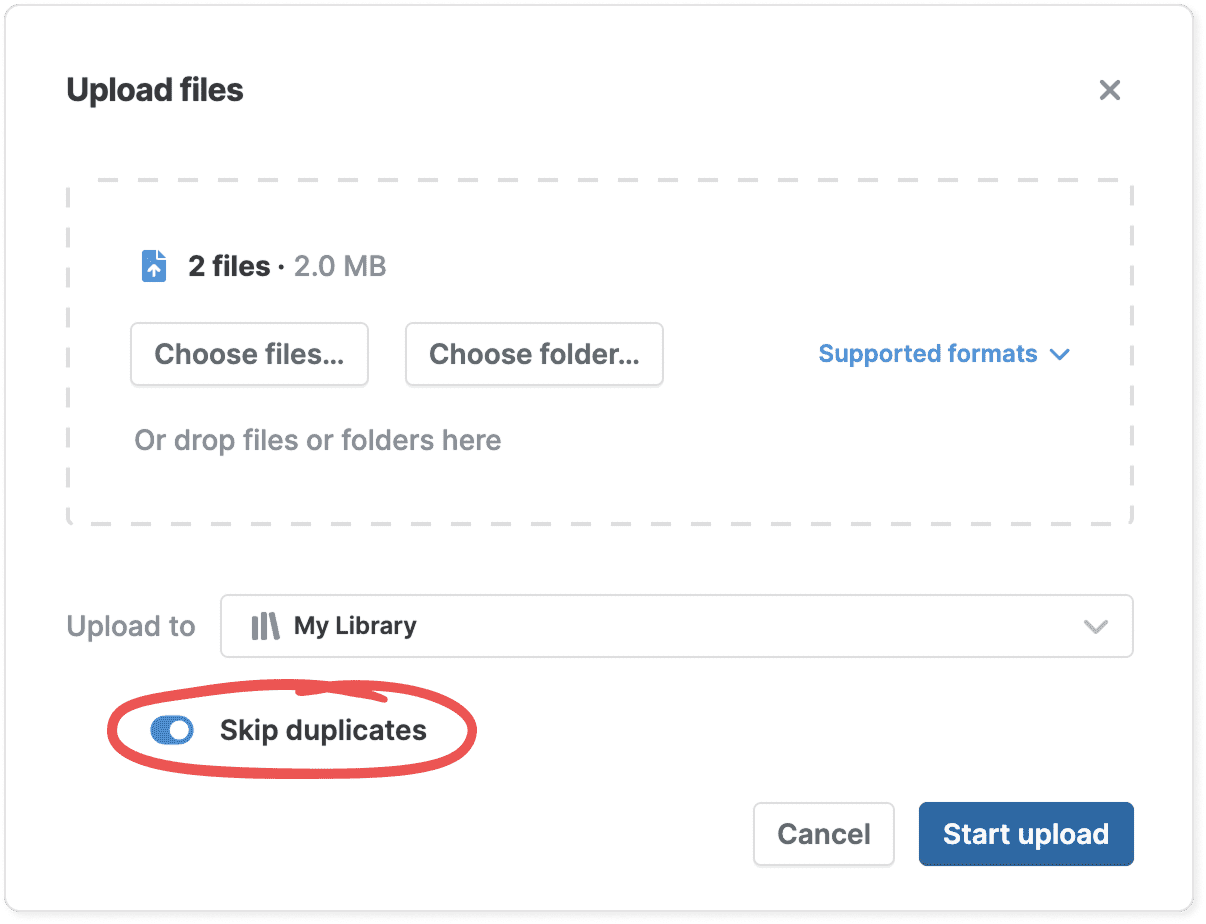
- When uploading files — Paperpile checks for duplicates when importing references via Add > Upload files. The Skip duplicates option is enabled by default, so references that match existing entries in your library are skipped automatically.
- When metadata is updated or manually edited — Paperpile can also detect duplicates when a reference's metadata changes.
Paperpile identifies duplicates by comparing the following identifiers: DOI, arXiv ID, ISBN, PMID, PMC ID, and patent number. References with no shared identifier can also be flagged as duplicates if their metadata is exactly identical.
Resolve duplicates
To review flagged duplicates, open the filter menu and choose Duplicates. Flagged duplicates are listed in groups—click Not a duplicate on a reference to dismiss an incorrect match.
To merge references, you have two options:
- Click Merge all to merge every flagged group in your library at once.
- Click Merge selected to merge only the groups you've selected.
For each group, all metadata, attachments, folders, and labels will be consolidated into a single reference. The original references will be moved to Trash.
You can also select one or more references and click Trash in the toolbar (or press the # key) to remove them from your library instead of merging.
Troubleshooting duplicates
- If Paperpile isn't detecting a pair of duplicates, this is most likely because the two references don't share any of the supported identifiers and their metadata differs enough that an exact match wasn't found. Check whether both references have a DOI or other identifier filled in, and make sure the values match exactly in the metadata edit dialog.
- If Paperpile flags a group of references as duplicates that aren't, open the Duplicates filter and click Not a duplicate on each reference to dismiss each match.
- If you need to contact support about a specific duplicate issue, include the raw metadata for each reference in your message. Select each reference and press Cmd+J (Mac) or Ctrl+J (Windows) to copy its JSON to the clipboard, or go to More > Export > JSON in the toolbar. Paste the resulting output into your support message so the team can investigate the exact metadata.